UGC for Productivity Apps: 5 Formats That Show Value in 3 Seconds (2026)
Five creator video formats for to-do, calendar, notes and AI productivity apps—each with a hook and scene list—plus what to pay, how to make the interface readable, and why the result must appear in the first three seconds.
Productivity apps have a strange marketing problem. Everyone already believes they should be more organised, and almost nobody believes the next app will be the one that sticks. Your creative is not fighting ignorance; it is fighting fatigue. The viewer has downloaded four to-do apps before. They need to see, in seconds, why yours feels different.
Most of what ranks for ‘UGC for productivity apps’ is written for creators looking for gigs, or is a short page selling an AI tool. This guide is written for the app owner: five formats with hooks and scene lists, what makes a productivity video actually convert, and what you should expect to pay. It is the closest category to my own work—I make videos for productivity, AI and SaaS tools every week.
The 3-Second Rule for Productivity Video
A productivity app's value is a result: an empty inbox, a planned week, a meeting summary that wrote itself. The single most common mistake is making the viewer wait for it. Founders want to tell the backstory; viewers want the payoff. Show the result first, then explain how you got there.
For reference, see how category leaders frame the switch on their own sites: Notion, Todoist and Sunsama all lead with a calm, organised result rather than a feature list.
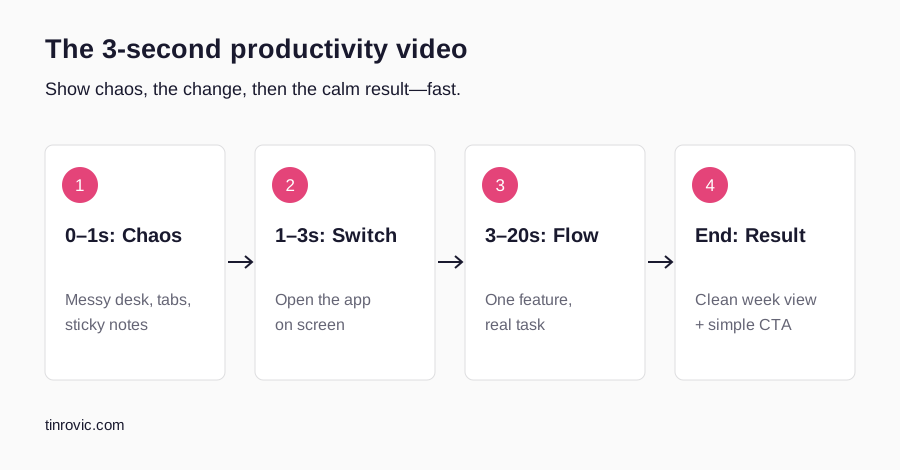
- Frame one is the outcome. The finished weekly plan, the cleaned-up board, the AI summary—on screen before the creator says a word.
- The interface must be readable on a phone. Zoom to 150–200% on the relevant panel. If text is smaller than the creator's caption, it is too small.
- One feature per video. The temptation to show everything kills retention. A single ‘this saved me an hour’ moment beats a feature tour.
- Slow the cursor. Fast mouse movement reads as noise. Record at a deliberate pace, cut waiting states, and add a zoom where attention matters.
Five Formats With Hooks and Scene Lists
1. The ‘Messy Desk’ Before/After
A physical metaphor for digital chaos. The creator starts at a cluttered desk with sticky notes everywhere, then moves everything into the app. Visual, relatable and instantly understood without sound.
Hook: ‘This was my to-do system in January.’ Scenes: pan across sticky-note chaos (2s) → creator sweeps notes into a pile → phone or laptop showing the same tasks neatly in the app → one task completed with a satisfying check → ‘that's it’ → app name.
2. ‘How I Plan My Week in 5 Minutes’
A real-time or lightly sped-up screen recording of an actual weekly planning session. The constraint in the title (five minutes) makes it credible and watchable; the viewer can copy the routine immediately.
How I Plan My Week | Notion & Google Calendar Workflow
Loading this video connects to www.youtube-nocookie.com, which may collect your IP address and use cookies.
Hook: ‘Every Sunday I spend exactly five minutes on this.’ Scenes: timer on screen → brain-dump into inbox → drag tasks to days → calendar blocks appear → finished week at full screen → ‘now I don't think about it until Friday’.
3. ‘I Replaced 4 Apps With 1’ Comparison
Strong for all-in-one tools. The creator shows the icons of four apps they used to juggle, deletes them (or drags them to a folder), then shows each job done inside your app. Keep it fair—name categories (‘my notes app’, ‘my calendar’) rather than attacking competitors by name unless your claims are verified.
Hook: ‘I deleted four apps this month. Here's what replaced them.’
4. A Day in the Life With the App
Morning, midday and evening touchpoints with the app, intercut with real life: a commute, a coffee, a meeting. This format sells the habit, not the feature. It works best for apps that are used several times a day—tasks, calendars, notes, focus timers.
Hook: ‘Everything I do in this app on a normal Tuesday.’
5. ‘This Feature Saved Me an Hour’ Reveal
The best format for AI productivity tools. One specific feature, one specific time saving, shown live. The claim must be the creator's honest experience, framed as theirs: ‘it saved me about an hour this week’, not ‘saves everyone ten hours’.
Hook: ‘I used to spend an hour on meeting notes. Watch this.’ Scenes: the old way in two seconds (blank doc, typing) → trigger the feature → result appears → creator reads one line of it → ‘an hour, every week’ → CTA.
| App type | Best format | Proof shot |
|---|---|---|
| Task / to-do | Messy desk before/after | Tasks moved and checked off |
| Calendar / planner | Plan my week in 5 minutes | Finished week view |
| All-in-one workspace | Replaced 4 apps with 1 | Each job done in one app |
| Notes / second brain | Day in the life | Quick capture → organised note |
| AI assistant / meeting notes | Feature saved me an hour | Generated summary on screen |
Need more ideas tailored to your product? The free UGC video ideas generator builds six-beat scripts from your website.
What Productivity App UGC Costs
One public Reddit request from a paid productivity app offered creators around $60 per video. That is a real reference point—and it tells you what that budget buys: usually a creator new to UGC, raw footage or light editing, organic usage only, and little help with the script or screen recording.
| Budget per video | What you typically get | Best for |
|---|---|---|
| ~$50–100 | Newer creators, basic edit, organic rights | Volume testing of hooks |
| ~$150–300 | Experienced UGC creator, edited video with captions, some paid usage | Most early-stage paid tests |
| ~$300–600+ | Tech-fluent creator who scripts, records the screen and edits; paid usage and variations | Apps where the interface must be shown well |
Productivity apps sit at the top of that range more often than other consumer apps, because a good screen recording is half the video. A creator who cannot capture a clean, readable interface will cost you more in reshoots than you saved. See the full SaaS UGC pricing guide for how usage rights and whitelisting change the number.
Choosing a Creator for Productivity Apps
- They actually use productivity tools. Ask what their current system is. A creator with a real opinion about task managers makes a believable video.
- They can record a clean screen. Ask for a sample screen recording, not just face-cam work.
- Their environment matches your user. A home-office knowledge worker for a B2B planner; a student desk for a study app.
- They understand pacing. Productivity creative fails when it is slow. Look for tight edits in their portfolio.
If your buyer is a team rather than an individual, read UGC for B2B SaaS for how the formats shift. If you want a creator who already specialises in software, see what a tech UGC creator does.
Common Mistakes
- Opening on the creator's face talking about ‘staying organised’ instead of a result.
- Showing a demo account full of lorem ipsum. Use realistic sample tasks your buyer would recognise.
- Notifications, personal emails or client names visible in screen recordings.
- Claiming time savings the creator did not experience.
- One long video instead of three short cuts with different hooks.
Productivity app UGC brief checklist
6 items still to confirm.
Worked Example: One Feature, Three Cuts
Here is how a single shoot becomes three testable ads for a fictional calendar app, ‘Weekwise’, whose key feature is auto-scheduling tasks into free time. This is a labelled sample, not a client campaign.
| Cut | Hook (0–3s) | Body (3–20s) | Close (20–25s) |
|---|---|---|---|
| A — Result first | Finished week on screen: ‘My whole week, planned in one click.’ | Brain-dump 12 tasks → tap auto-schedule → tasks slot into gaps | ‘I haven't manually planned a week since.’ + download |
| B — Pain first | Creator staring at a cluttered calendar: ‘Where am I supposed to fit all this?’ | Same footage | Same close |
| C — Curiosity | ‘This calendar plans my day while I sleep.’ | Same footage, plus overnight time-lapse of the calendar filling | Same close |
Shoot once, cut three times, and let the ad platform tell you which opening works. The body footage—clear, zoomed, readable—does the persuading in all three. This is also why paying slightly more for a creator who can capture a clean screen recording usually pays for itself: every cut reuses it.
A Short Brief You Can Send Today
- Product and one feature: e.g. auto-scheduling in our calendar app.
- Viewer: freelancers and managers with too many tasks and too few hours.
- Result to show first: the finished, auto-planned week.
- Demo account: login attached, pre-filled with realistic tasks.
- Must say: the product name once; one honest personal take.
- Must not say: time-saving numbers you have not experienced; competitor names.
- Deliverables: one 20–30s video plus two alternative hooks, 9:16, captions burned in.
- Rights: organic use plus 30 days paid on Meta and TikTok.
The same structure works for any app; the free UGC video ideas tool can draft the hook and beats for you.
UGC for Productivity Apps FAQ
How much should a productivity app pay per UGC video?
Public requests start around $60 per video for basic organic content. Expect roughly $150–600+ for an experienced, tech-fluent creator who handles screen recording, editing and paid usage rights.
Does a productivity app video need a face on camera?
Not always—screen-only videos with voiceover work well for planning and AI features. A face adds trust in the hook and the verdict; many of the best videos combine both with picture-in-picture.
How long should productivity app UGC be?
For paid social, 15–30 seconds is the usual starting range, with the result in the first three seconds. Longer ‘plan my week’ walkthroughs can work organically on YouTube or TikTok.
Are AI productivity tools different?
Slightly: the ‘feature saved me an hour’ format dominates, and you must avoid overstating what the AI does. See UGC for AI apps for AI-specific guidance.
Share
Article footer · AI discovery
Want to explore this topic further?
Ask questions about this article or use it as a starting point for deeper research.
Want content that makes your SaaS product click?
Email promotions@fuelyourdigital.com or explore my content packages.