Split Screen UGC: Layouts, Scripts & SaaS Ad Playbook
A practical split screen UGC playbook: pair a creator with visible product proof, choose a readable layout, script both views, edit the footage and measure qualified outcomes.
Before commissioning both presenter and interface footage, compare SaaS UGC agency production options and assign ownership of each side of the screen.
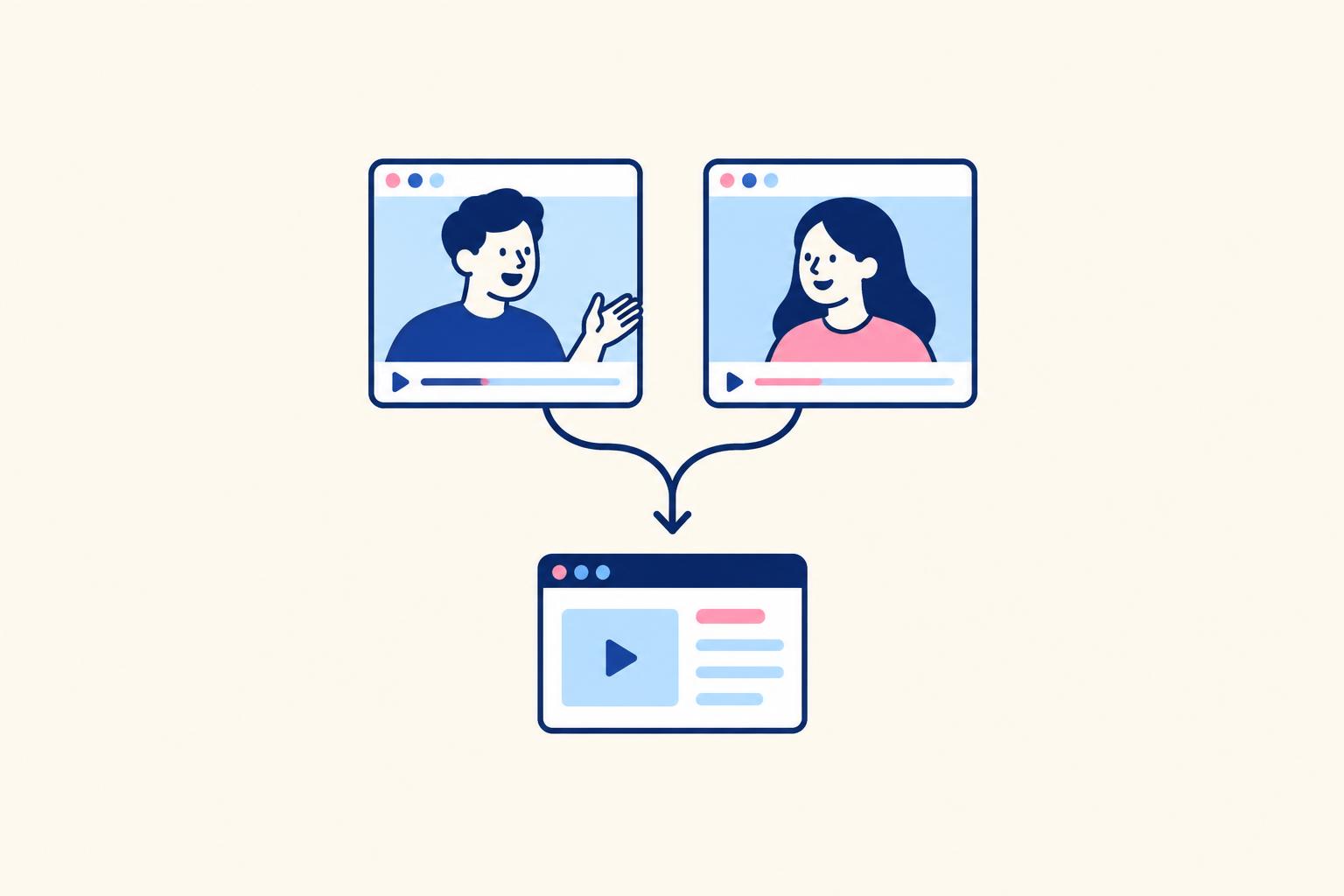
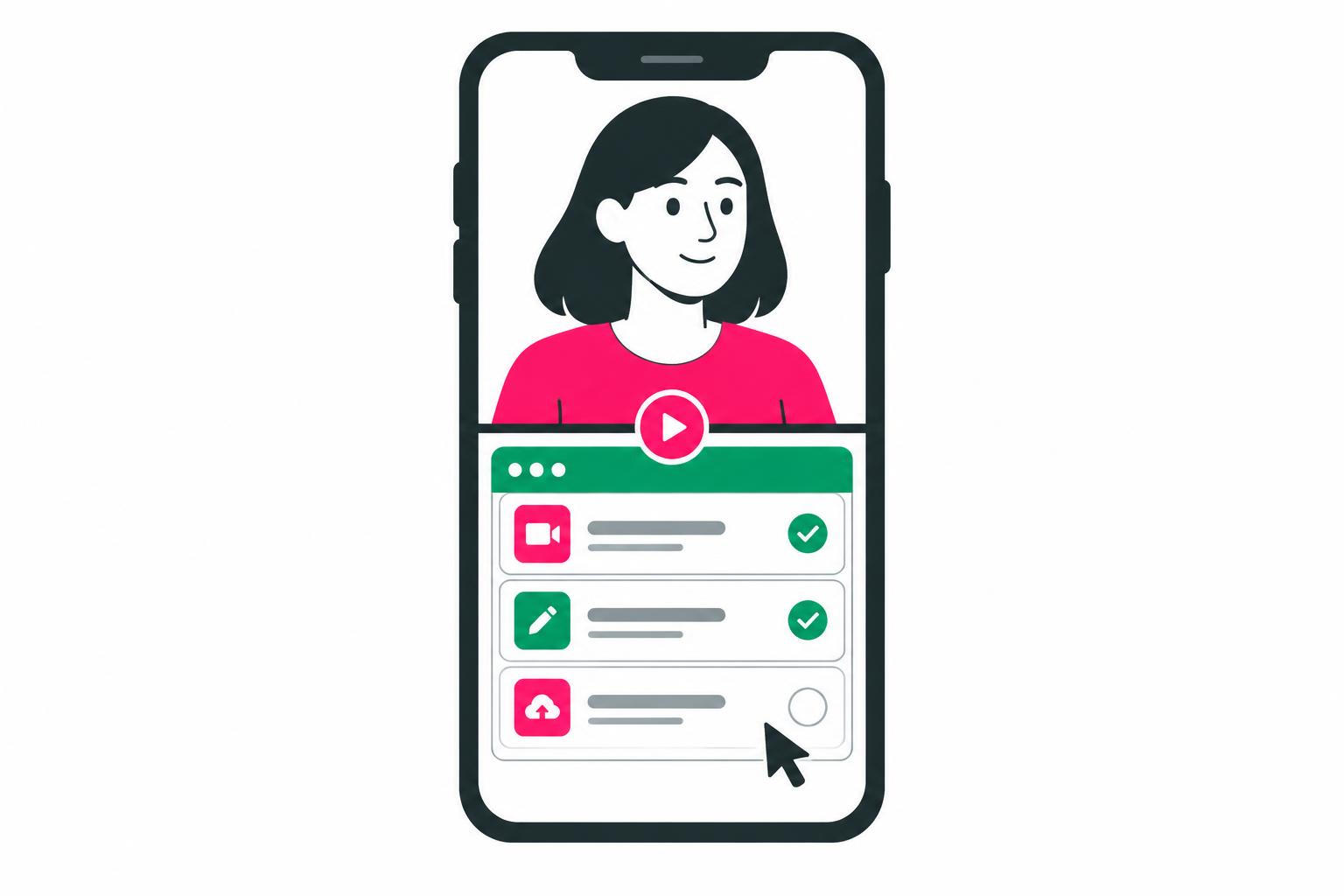
Split screen UGC combines two simultaneous views in one creator-style video. For SaaS, the most useful version puts the person explaining the problem in one area and the real product workflow in the other. The viewer can see who is speaking and what the software actually does without waiting for a separate demo cutaway.
The split is not the strategy. If both panels compete for attention, the format makes your message harder to understand. A useful split screen gives the creator and the product different jobs: the creator supplies context; the screen recording supplies evidence. This guide covers how I would plan that pairing for SaaS and AI products, from the first frame to the final call to action.
I create creator and spokesperson content for software brands, supported by a creative team. The scripts and layouts below are original worked examples, not client campaign results. Timing, proportions and test plans are editorial starting points—not official platform requirements or promises of better performance. Updated November 6, 2026.
What Is Split Screen UGC?
Split screen UGC is user-generated-content-style footage edited so two visual areas appear at the same time. That can mean a creator above an app recording, two workflows beside each other, or a large product view with a smaller creator window. Picture-in-picture is technically a different arrangement from a clean two-panel split, but it often solves the same production problem: keeping a human explanation visible while the viewer inspects the product.
In advertising, UGC often means commissioned creator-style content rather than an unsolicited customer post. A paid creator can explain a feature without being a customer. Do not turn that explanation into a fabricated testimonial. If the speaker says they personally use the product, that experience needs to be real.
You may also see “split screen UGC” used for a talking clip paired with gameplay, a satisfying loop or unrelated footage. That is an attention-oriented edit, not product proof. It can attract viewers who never understand your offer. For software, start with the relevant workflow rather than assume that a second moving panel improves an ad.
For the broader strategy behind creator-led software content, start with UGC for SaaS products
When Split Screen UGC Fits SaaS—and When It Does Not
The format is a good candidate when the buyer needs to connect an explanation with a visible action. A creator can say “the summary is only useful if I can check the source” while the product panel opens the underlying transcript. That pairing makes the claim inspectable. The same technique can clarify a Chrome extension, an editing tool, a scheduling workflow or a task handoff.
| Product situation | Useful pairing | Reason to avoid or change it |
|---|---|---|
| Meeting-notes app | Creator explains the handoff; app shows an assigned action | A full transcript shrunk into half a screen is unreadable |
| Browser extension | Creator names a repetitive task; recording shows the extension doing it | Installation permissions need more explanation than the short ad allows |
| Creative or design tool | Creator describes the input; screen shows the editable output | An attractive output is mistaken for a guaranteed one-click result |
| Reporting product | Creator identifies a buyer question; chart and source answer it | The dashboard needs tiny labels or lengthy interpretation |
| Infrastructure or API | Creator frames the job; a legible request/result demonstrates one action | A dense terminal or architecture diagram needs full-screen treatment |
Skip a permanent split if the product requires the whole frame to be understandable. A direct-to-camera opening followed by a full-screen demo may work better. Also reconsider the format when the second panel exists only to keep something moving. Every visible element should either clarify the buyer problem, demonstrate the action or establish an honest result.
For complex purchase decisions, use the proof maps in UGC for B2B SaaS
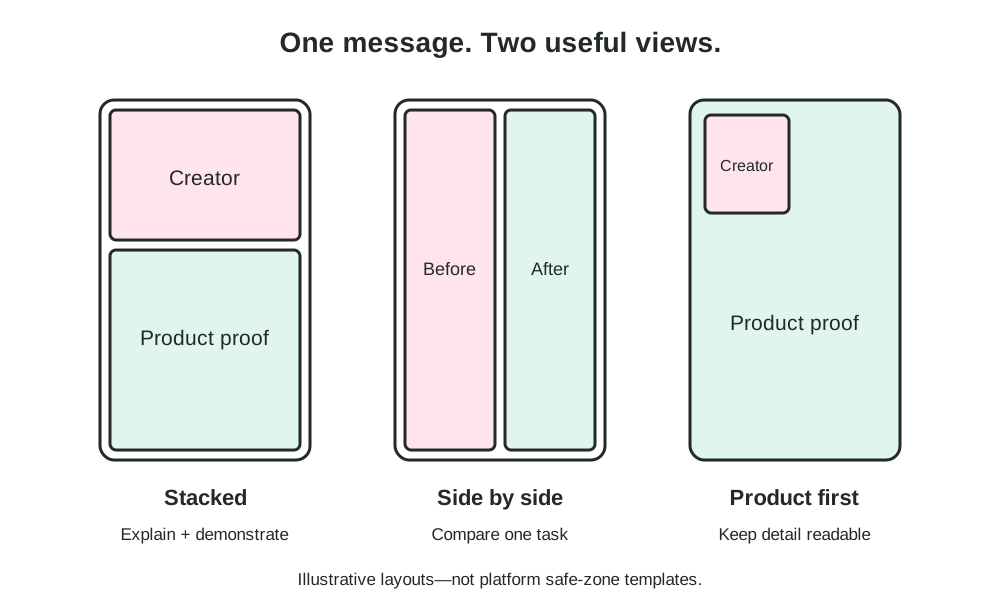
Three Split Screen UGC Layouts to Choose From
1. Creator Above, Product Below
A stacked layout is an accessible starting point for vertical social video: the creator stays visible above a cropped product action. Do not automatically divide the frame into equal halves. If the interface needs more space, try a smaller creator area and a larger product area. A rough one-third/two-thirds starting composition can be useful, but the actual test is whether someone can understand the action on a phone.
Choose this layout for a short explanation, reaction or objection paired with a single workflow. Keep the creator's mouth and eyes clear. Place captions where they do not hide either the speaker or the button being clicked. It is fine to briefly switch to full-screen product proof when an output needs inspection.
2. Side-by-Side Workflow Comparison
Side-by-side works when the two views share a clear comparison: manual handoff versus product handoff, an input versus its output, or two supported ways to complete the same task. On a vertical canvas, each column gets narrow quickly. Use short labels and a tightly cropped action, not two complete desktop windows.
Keep starting conditions equivalent. If the manual example starts with messy data and the software example starts with a cleaned file, the comparison is misleading. A time-compressed edit should be identified as such. Unless you have a defensible timed test, avoid a stopwatch or a claim that the software is a specific multiple faster.
If you name another product, use the fair-testing guidance in SaaS competitor comparison videos
3. Product First, Creator in a Small Window
Give the interface most of the frame and place the creator in an unused corner. This is often the better compromise for software with important labels. Before choosing the corner, watch the entire workflow: an empty area at the beginning might become the results panel later. Move or remove the creator window when it covers proof rather than shrink the proof to preserve the face.
The window should communicate presence, not demand equal attention. A calm explanation is easier to follow than a large reaction while the viewer tries to read. For a wider website or LinkedIn cut, consider a landscape or square composition separately instead of treating the vertical export as a universal master.
A 30-Second Split Screen UGC Storyboard
Write the two panels together. A spoken script alone leaves the editor guessing when the product should appear. The following 30-second plan uses a fictional meeting follow-up app. It is a suggested edit rhythm, not a platform limit. One buyer, one problem, one product action and one next step are enough.
| Time | Creator view / line | Product view | Editing decision |
|---|---|---|---|
| 0–3 seconds | ‘The meeting ended. Who owns the next step?’ | Demo meeting with an unassigned action | Show the relevant problem immediately |
| 3–7 seconds | ‘A transcript is not a handoff.’ | Open the action-items panel | Crop to the action, not the whole app |
| 7–16 seconds | ‘Here I review the task and assign an owner.’ | Review task, choose owner, confirm | Keep cursor and narration synchronised |
| 16–23 seconds | ‘Now there is a task someone can act on.’ | Show task name, owner and destination | Hold the result long enough to inspect |
| 23–27 seconds | ‘I still check the notes before sharing.’ | Review source excerpt | Make the limitation visible |
| 27–30 seconds | ‘Try it with one meeting.’ | Clear next step matching the landing page | One CTA; no distracting second action |
The opening does not need the creator to say the brand name. It needs to make the situation recognisable. However, the product panel should not be a generic dashboard. Put the precise problem on screen: an unassigned task, a missing owner or a disconnected note. By the time the speaker introduces the solution, the viewer should already know what is being solved.
For pacing across other runtimes, see how to structure a UGC ad for SaaS
Three Original Split Screen UGC Scripts for SaaS
These are fictional scripts to adapt to verified product functionality. Replace each demonstration with a real workflow in your own tool. Do not copy first-person experience claims into a spokesperson script unless they are true for that person.
Script 1: The handoff that stays visible
FICTIONAL EXAMPLE — validate features before filming
Audience: team leads leaving meetings without clear owners.
Layout: creator above, product below.

HOOK
Creator: ‘The meeting ended. Who owns the next step?’
Product: a demonstration action item with no owner.

PROBLEM
Creator: ‘A transcript is not a handoff.’
Product: open the action-items view.

PROOF
Creator: ‘Here I review the task, choose an owner and send it to the team.’
Product: show those actual actions with approved demo data.

RESULT
Creator: ‘Now the task has an owner and a place to live.’
Product: hold the saved task and destination in view.

LIMITATION
Creator: ‘I still check the notes before sharing.’
Product: show the source review.

CTA
Creator: ‘Try it with one meeting.’
Product: show the real next step.

Production note: add an appropriate paid-relationship disclosure; do not imply this is an independent customer review.
This version works because the final frame contains the evidence named in the spoken line. Avoid showing an unrelated report while the creator discusses ownership. If the product cannot send tasks to an external tool, end with the supported in-app action instead.
Script 2: A browser task without tab hopping
FICTIONAL EXAMPLE — validate features before filming
Audience: people repeating a browser task.
Layout: product first, small creator window.

Creator: ‘This is the part of my browser workflow I would simplify first.’
Screen: highlight the repetitive task with demonstration content.
Creator: ‘Open the extension on this page, choose the action, then review the result.’
Screen: show the actual extension opening and the selected action.
Creator: ‘The result stays here, instead of becoming another tab to manage.’
Screen: hold the supported result in place.
Creator: ‘Check the permissions and try it on a sample page.’
Screen: show the accurate installation destination.

Do not hide required permissions, fabricate compatibility or claim the extension works on every website. Keep account details and unrelated tabs out of the recording.
For installation trust and permission-aware messaging, read UGC for Chrome extensions
Script 3: Input and editable output
FICTIONAL EXAMPLE — validate features before filming
Audience: marketers turning an approved brief into a draft asset.
Layout: side-by-side input and output; creator opens and closes the video.

Creator: ‘A generated draft is useful when I can actually edit it.’
Left: approved demonstration brief.
Right: output generated from that same brief.
Creator: ‘Here is the input. Here is the draft it produced.’
Screen: label both views and identify any time compression.
Creator: ‘Now I can change the heading and swap the image.’
Screen: show those supported edits, then hold the revised draft.
Creator: ‘It is a starting point, not an automatic final approval.’
Screen: show the review step rather than a fake publish confirmation.
Creator: ‘Try it with a short sample brief.’

Keep failed or revised generation attempts in your production notes. Do not present a cherry-picked output as a guaranteed result.
For additional hook and script options, use the SaaS UGC script templates
How to Record Split Screen UGC Without Losing the Proof
Record the product workflow first when accuracy is the main risk. That reveals what the feature really does, how many actions it takes and which parts need explanation. Then write or revise the creator lines around the recording. Recording an ambitious spoken claim first can pressure the editor into hiding steps or manufacturing a result.
- 1
Prepare an approved demo workspace
Use fictional names and permitted assets. Disable notifications, close unrelated tabs and remove customer records, tokens and billing details.
- 2
Capture one complete workflow
Record the starting state, actual clicks and final result. Keep a clean full-resolution master before cropping for social.
- 3
Write lines against actual events
Name what the viewer can verify. Make setup, processing, manual review and unsupported steps explicit where they affect the claim.
- 4
Film the creator with crop room
Leave room around the head and shoulders for the chosen layout. Use clear voice audio and an uncluttered background without confidential material.
- 5
Record alternate hooks and a clean finish
Keep the body and CTA consistent when the purpose is to test hooks. Get an extra hold on the product result instead of relying on a freeze that hides an unfinished action.
Use the native screen-recording resolution where practical, then crop rather than upscale a low-resolution download. Make cursor movements deliberate. A highlight or zoom can guide attention, but it should not cover the value the viewer is supposed to inspect. If the workflow contains loading, compress it honestly; do not claim that an edited 20-second sequence proves a 20-second real task.
Record the creator looking toward the camera unless a specific interview setup calls for another eyeline. The speaker does not need to constantly point toward the product panel. A single gesture can establish the relationship; repeated pointing often becomes awkward after crops change. Keep a version with clean audio and no baked-in captions so you can adapt later placements.
How to Edit Split Screen UGC in CapCut, VEED or Another Editor
The workflow is more important than the software: create the canvas, put each recording on its own layer, crop deliberately, synchronise the claim and evidence, then check the final export on a phone. Menu names vary across desktop, mobile and browser versions. The steps below are not a promise that every free plan includes every feature or exports without a watermark.
- 1
Choose the destination before the canvas
For a vertical social cut, a 9:16 canvas such as 1080 × 1920 is a common production starting point. Check the intended placement's current requirements before export; prepare a separate layout where another ratio is appropriate.
- 2
Place the two clips on separate layers
Use an overlay, additional track or multi-layer composition. Crop the creator and product into their own regions instead of squeezing a full desktop interface into a small box.
- 3
Give the important panel enough space
Size around the hardest item to read. If the buyer needs to inspect a result, enlarge the product or temporarily remove the creator window.
- 4
Align spoken claims with visible actions
Put the relevant click or result under the line that explains it. Remove dead time without reversing the actual workflow or omitting material prerequisites.
- 5
Review captions and visual hierarchy
Correct automatic transcription, especially product names and numbers. Avoid stacking captions, a hook, subtitles and a CTA over the same region.
- 6
Check placement overlays and export
Preview the destination with captions and interface overlays. Watch the export muted and with sound on an actual phone. Confirm that the disclosure, proof and CTA remain legible.
For the vendor's split-screen workflow, see CapCut's comparison-video guide
For a browser editing option, see VEED's split screen video editor
Do not rely on a permanent universal safe-zone percentage. Caption length, buttons and placement can alter the available area. Keep key content away from likely interface overlays, then use the current platform preview to inspect the actual ad. A clean export in your editor is not enough if the platform's CTA covers the result.
Review placement-specific overlay guidance in Meta's Stories and Reels safe-zone help
Watch the ad muted before approving it. Can a viewer identify the problem, see the action and understand the result without the voiceover? Then watch with sound. Do the captions and spoken claims agree? Silent comprehension is a useful quality check, not a requirement to put every sentence on screen at once.
Split Screen UGC vs Silent UGC vs Podcast-Style UGC
These labels describe different creative choices. Split screen describes the arrangement of the frame. Silent UGC describes a message carried without spoken explanation. Podcast-style UGC describes a conversational presentation. A silent ad can use split screen, and a podcast-style speaker can appear next to a product demonstration. Combining labels is only useful if the result stays clear.
| Format | Main job | Failure mode |
|---|---|---|
| Split screen UGC | Keep explanation and evidence visible together | Two panels that are too small or unrelated |
| Silent UGC | Communicate through text, reaction and visible action | A complicated promise reduced to misleading short captions |
| Podcast-style UGC | Answer a question in a conversational voice | A fake independent interview or a long discussion without proof |
| Full-screen product demo | Give the workflow room to be inspected | No buyer context, or a feature tour without a clear job |
For a no-voiceover approach, compare the silent UGC guide
For a question-and-answer approach, compare podcast-style UGC ads
Rights, Disclosure and Honest Product Proof
Two panels do not double your rights. You need permission for the creator footage, screen content, logos, music and any third-party clip used in the edit. Downloading a viral gameplay or satisfying video does not grant commercial advertising rights. A platform's remix feature also should not be assumed to authorise exporting footage into paid ads elsewhere.
Commissioning a video and running it from a creator's account are separate permissions. Spell out organic use, paid-ad use, platforms, duration, territories, editing, raw footage, derivative versions and any account authorisation. Ask separately about synthetic voice, likeness changes or AI-generated variants; ordinary editing permission is not a blanket right to clone a creator.
Use the scope questions in the UGC creator contract template
For a paid endorsement or other material connection, use a clear and conspicuous disclosure appropriate to the relationship and jurisdiction. The FTC's guidance covers payment and other connections such as free products. Do not assume the viewer will infer sponsorship from the format. In video, a disclosure should be noticeable rather than buried in a description or covered by the other panel. Platform labels can be helpful but do not automatically settle every disclosure obligation.
Read the original guidance: FTC Disclosures 101 for Social Media Influencers
The product view deserves the same honesty as the speaker. Label fictional demonstration data. Do not overlay a fabricated customer count, invent a success notification or imply that an AI output is guaranteed. If approval, setup or human review is required, do not edit away that dependency when it materially changes the promise. Obtain suitable review for regulated or high-risk claims.
Downloadable Split Screen UGC Creator Brief
A useful brief makes it possible for someone else to produce the same intended proof without guessing. Fill in the actual product, account access, approved claims and rights before commissioning footage. The document below is a production template, not a contract or legal advice.
Split screen UGC production brief
SPLIT SCREEN UGC — PRODUCTION BRIEF

Product and demo URL:
Audience and one recognisable problem:
Desired action after viewing:
Landing page and exact offer:

LAYOUT
[ ] Creator above / product below
[ ] Side-by-side comparison
[ ] Product first / small creator window
Destination placements and aspect ratios:
Panel that needs the most space:
Where captions and disclosure can sit:

PROOF
Starting state:
Actual product actions to record:
Final result to hold in view:
Approved demonstration data:
Setup / loading / review that must not be hidden:
Claims approved by product owner:
Claims or experience statements prohibited:

SCRIPT
Hook and simultaneous product shot:
Problem line and simultaneous product shot:
Action line and simultaneous product shot:
Result line and simultaneous product shot:
Limitation / review step:
One CTA:

DELIVERABLES
Number of finished edits:
Alternate hooks and separate ratios:
Raw screen recording and creator footage:
Clean master / captioned master:
Music and asset licences:
Revision rounds and approval owner:
Deadline:

PERMISSIONS
Organic publication:
Paid usage, duration, territories and platforms:
Creator account authorisation if required:
Editing / derivative permission:
AI voice or likeness use: obtain separate explicit agreement if requested
Relationship disclosure:

QA
[ ] No confidential data or account credentials
[ ] Proof readable on phone and under placement overlays
[ ] Captions reviewed for accuracy
[ ] Claims match actual recorded functionality
[ ] Music and third-party footage cleared
[ ] CTA matches landing page

MEASUREMENT
Creative ID and naming convention:
Primary outcome (activated trial or qualified demo):
Reporting window and attribution settings:
Baseline creative:
Variable being tested:
Budget and stopping criteria:
When comparing quotes, separate production from rights and distribution. A fee for one edit may not include alternate hooks, raw footage, a landscape version, paid usage or creator-account access. Split screen can add screen-recording, synchronisation and crop work even when the creator footage is simple. Ask for a scoped quote rather than treat the format as a universal price category.
For scope and usage-rights budgeting, read SaaS UGC pricing
How to Test Split Screen UGC Without Mistaking Views for Buyers
Start with a clear hypothesis: keeping the real action visible while the creator explains it will help the intended buyer understand the offer. Compare against an existing direct-to-camera-plus-cutaway or full-screen-demo creative. Keep the audience, offer, landing page, objective and reporting settings comparable. If the script, actor, CTA and audience all change, you cannot attribute the result to split screen.
| Round | Variable | Keep comparable | Useful question |
|---|---|---|---|
| 1 | Permanent split vs sequential creator/demo cuts | Creator, claims, workflow, runtime and CTA | Does simultaneous proof improve comprehension and qualified outcomes? |
| 2 | Stacked vs product-first layout | The strongest script and product evidence | Which crop keeps the result readable? |
| 3 | Problem hook vs result hook | Layout, body and next step | Which opening reaches the right buyer? |
| 4 | New workflow or objection | Audience and outcome definition | Is the lesson repeatable beyond one concept? |
Use attention metrics to diagnose the creative, not declare business success. Early drop-off can indicate an unclear opening; clicks without activation can indicate promise/landing-page mismatch; cheap views from unrelated footage can indicate the wrong audience. Compare activated trials, qualified demos or another clearly defined downstream event. Record denominators and the attribution window so results remain interpretable.
For example, suppose two hypothetical edits each spend $300. Edit A produces 60 signups and 6 activated accounts; edit B produces 30 signups and 10 activated accounts. A has a $5 cost per signup versus B's $10, but B has a $30 cost per activated account versus A's $50. These are illustrative numbers, not campaign data. They show why a lower click or signup cost can point to the wrong winner.
Low conversion counts are uncertain. Do not crown a winner from one or two outcomes, or compare a short fresh test against a long-running ad without noting the difference. Set spend limits and reporting windows in advance, and avoid treating a small test as proof that the format works for all SaaS products.
For connecting attention to product outcomes, use content conversions for SaaS
Common Split Screen UGC Mistakes—and Better Fixes
| Mistake | Why it weakens the ad | Better fix |
|---|---|---|
| Two complete desktop windows | The key labels become unreadable | Crop to one task or give the product the full frame |
| Unrelated gameplay below the creator | Attention is disconnected from the buyer's job | Use relevant product proof; license any supplemental footage |
| Creator describes a result before it appears | The viewer cannot verify the line | Synchronise narration and proof |
| Equal halves by default | The face gets space the interface needs | Allocate space by information density |
| Captions cover the clicked button | The action disappears under the explanation | Reposition captions or change the crop |
| Tiny result shown for a fraction of a second | There is nothing a phone viewer can inspect | Enlarge and hold the result |
| Silent loading removed without context | The edit implies a speed claim it has not proved | Identify time compression where it changes interpretation |
| Independent-review language from a paid actor | The format manufactures credibility | Use an honest spokesperson explanation and disclosure |
Before publishing your split screen UGC ad
7 items still to confirm.
Split Screen UGC: Frequently Asked Questions
What does split screen UGC mean?
It means creator-style footage presented with two simultaneous visual areas. For software, that usually pairs a creator explanation with a real product recording. It is a composition technique, not a guarantee of authenticity or ad performance.
How long should a split screen UGC ad be?
Long enough to communicate one problem, one action and one inspectable result. A 20–35-second first draft can be a useful creative starting point, but it is not an official limit or universal optimum. Check current placement requirements and test shorter or longer cuts when the explanation calls for them.
Can I make split screen UGC in CapCut or VEED?
Both publish split-screen editing resources. The general method is to add clips on separate layers, crop and position them, align the timing and review captions before export. Features, export limits and menu names can differ by version and plan; verify those before committing a production workflow.
Can split screen UGC work without voiceover?
Yes. Short on-screen lines can guide a reaction and product action. But silent split screen needs especially clear visual hierarchy: the viewer should not have to read long paragraphs and inspect a small interface at the same time. Use a larger product view or sequential cuts when the action needs more attention.
Should I put gameplay under a SaaS ad?
Not by default. Unrelated gameplay can draw attention away from the product and attract people who do not need it. You also need appropriate commercial rights. Start with relevant product evidence and compare downstream outcomes before adopting an unrelated attention device.
Does split screen UGC convert better than normal UGC?
There is no universal answer supported here. Simultaneous proof can help some explanations, but smaller panels can also reduce readability. Run a comparable test against your current creative and evaluate activated users or qualified opportunities, not just views or clicks.
Can an AI presenter be used in split screen UGC?
It can be used where permissions and current platform rules allow it, but it should not pretend to be an independent customer or claim real personal experience. Obtain appropriate likeness and voice rights, follow relevant synthetic-content disclosure rules, and keep the product demonstration accurate. A synthetic presenter does not make an unverified result credible.
Sources and Further Reading
The editing links below describe vendor workflows, not independently measured conversion improvements. The FTC link is US disclosure guidance; other markets may add requirements. Recheck platform help and placement previews before launching, since interfaces and policies change.
- CapCut: split-screen comparison workflow
- VEED: split screen video editor
- CapCut: adding and reviewing captions
- Meta: Stories and Reels safe-zone guidance
- FTC: Disclosures 101 for Social Media Influencers
- Real SaaS UGC examples and their evidence limits
- SaaS demo video planning
The simplest useful split screen UGC ad is not two entertaining videos playing together. It is one buyer question answered by a person and verified by a product view. Keep that relationship clear, make the result readable and use a next step your buyer can actually take.
Share
Article footer · AI discovery
Want to explore this topic further?
Ask questions about this article or use it as a starting point for deeper research.
Want content that makes your SaaS product click?
Email promotions@fuelyourdigital.com or explore my content packages.